
Make sure you are registered for the site and logged in before proceeding. If you have not claimed your team, now would be a good time.
The roll of the Team Admin is very important to the accuracy of the results.
Go to the team page by clicking on “Teams” on the red navigation bar at the top of the home page

Find the team by either typing the name in at “Filter by name” or by scrolling down the page. Click on the team name. (If you cannot find your team you can create it yourself or contact the webmaster. There is a note at the bottom of the “list of teams” with instructions).
Click on “Team Manager” located under the team name and logo.

When the admin page comes up you can fill in the team address (if it is not already done), the county, phone numbers and a team web page. You can also upload a team logo, however, please make sure the logo is 150x150 pixels. If you do not have a square photo it may look distorted when you upload it.
The first thing the Team Admin should do is to make sure the roster is up to date and the names are spelled correctly. This is important because if an athlete’s name is not spelled correctly on the roster the system may not be able to make a match when uploading the results and a new profile will be created.
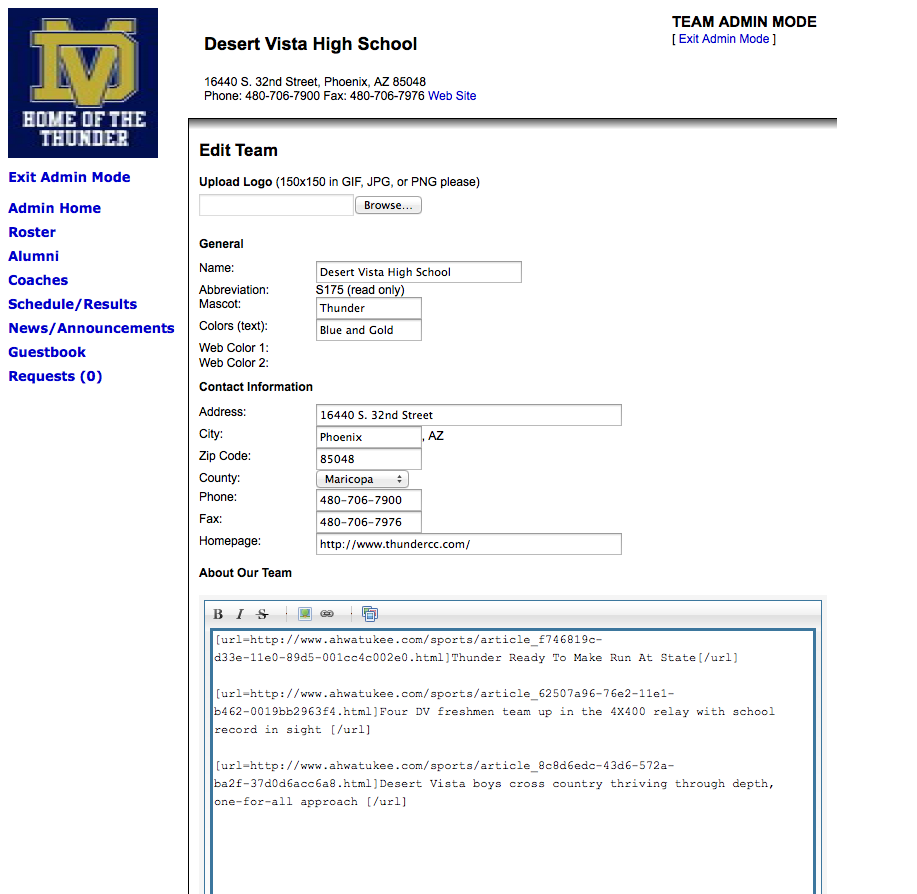
Also, you can add links to newspaper articles here by going to the bottom of the page to “About Our Team” and click on the link logo (it looks like a chain link). Paste the link to the article in the URL box and click “OK.” The link will appear in the “About Our Team” box. Highlight the words “Your text to link here…” and change it to the title of the article.
When done “Save Changes.”
On the left side of the page is a list of links. Click on ”Roster” and you will see a list of athletes with boxes next to their names. Click on the name and correct the spelling and add the graduation year of each athlete. The graduation year is important for 3 major reasons.
- On August 1st of each year the senior class will automatically roll over to the alumni page. If the graduation date is missing, the athlete will remain on the current roster.
- Sometimes an athlete participates in a USATF/XC meet or a meet where the athlete has to compete under a name other than the high school. When the results are uploaded every name or similar name in the country will show up during the upload process. The only way to match the marks to the athlete is by name and graduation year. Even then the name may not show up or there may be more than one name with the same graduation year. (A quick email to the webmaster by the parent or coach would help with making sure the athlete and the marks match up.)
- You can do a search for all athletes in the state by graduation year so you know where your athlete ranks as a freshman, sophomore etc.
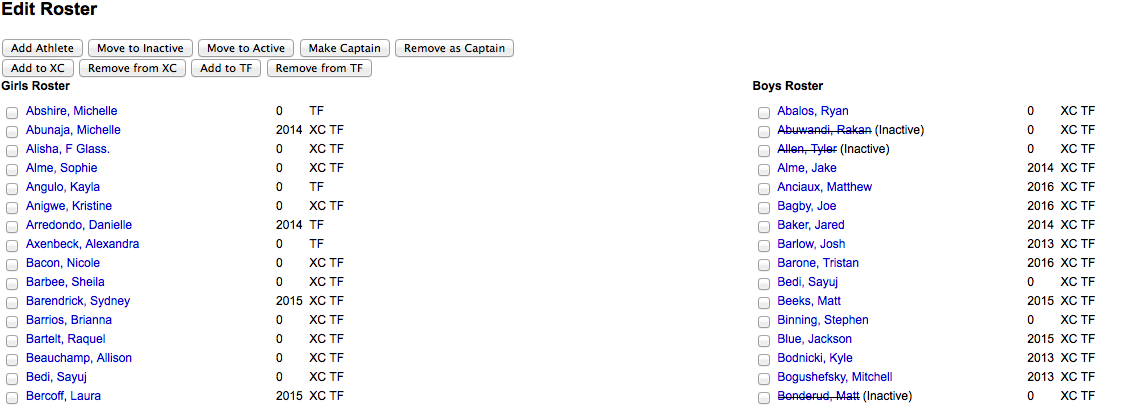
If an athlete has left the sport you can make him inactive. DO NOT make current athletes inactive or a duplicate profile duplicates. Correct the spelling on all duplicate names and let the webmaster know so they can merge the profiles. Every time a profile is created, the data from the meet is added to the profile. Each profile has different data attached to it so if you make one of them inactive, the data is also inactive. By merging the profiles together, all the data will be merged together.
On occasion coaches have made current athletes in one sport inactive (such as cross country) but when track comes around the athlete is no longer on the roster and a new profile is created.
IMPORTANT: If you have an athlete who moves to another school, please email the webmaster to let them know where they went. Their profiles will be merged and all the old marks will stay at the school they left and the new marks will be added to the new school. This way any records will still be intact at the first school and the athlete will have one profile will all the data attached.
Coaches:
Please add all coaches to the coaches secton....... with emails. This helps the webmaster in case there is a question regarding an athletes marks or a question regarding a meet added to the schedule.
Schedule/Results:
This is the page where all the team results from all the meets show up. The school records are created from this page (if you have a school record from years ago, we can add them to the schedule so your records will be correct).
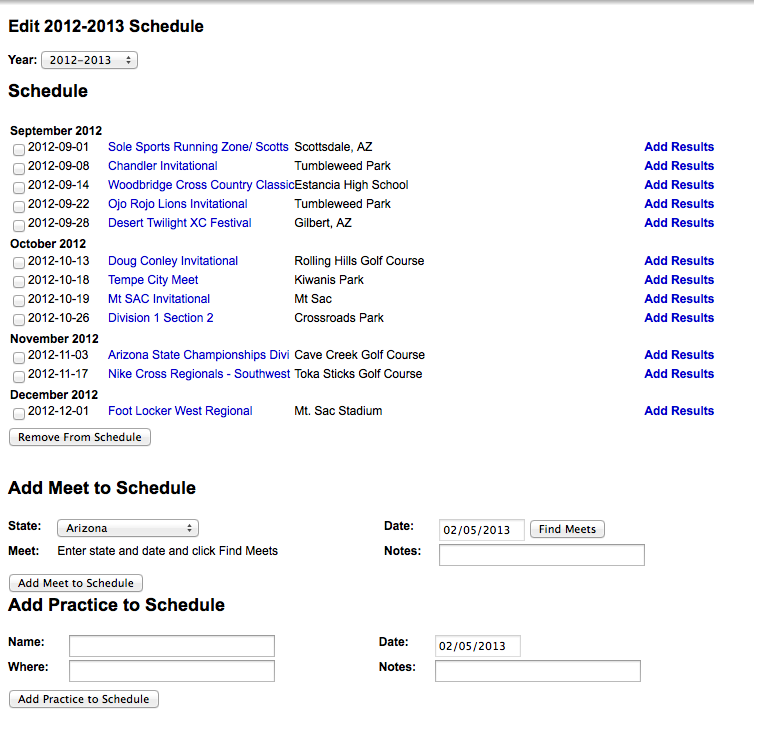
This is also the place where you can “Add Meet to Schedule” meaning add a meet to the Calendar page or to your team page so your athletes can see where you will be going (and spectators/reporters can see the list of teams at an upcoming meet).
IMPORTANT: If you are adding a meet to the Calendar PLEASE check the Calendar first to make sure the meet is not already listed. If it is listed, you just need to add it to your schedule.
Go to the date section under “Add Meet to Schedule” and click on the date of the meet you will be attending and find the date of the meet, then click on “Find Meets.” A list of meets on for that day will show up on the “Meet” section. Click on the down arrow to see the list. Click on the meet you want and “Add Meet to Schedule.”
If you do not see the meet you are looking for you can click on “Meet Not Listed” and add the meet by filling out the information. Make sure you fill out the venue and host team. If the meet is more than one day add one for each day or email the webmaster to let them know the dates.
Your team will show up on the meet page and you can create a virtual meet with the list of teams attending.
News/Announcements:
The news and announcement section is a great place to add daily announcements for the team, practice schedules, athlete of the week etc. Just click on the link and add your article.
Exit “Team Manager” (under Team Admin Mode).
You can check out your work by clicking on any of the links under the team address.
Enjoy and as always, email your webmaster (email located at the bottom of the front page of the State site) if you have any questions.
Team Records Page (This is what your Team Records page could look like)
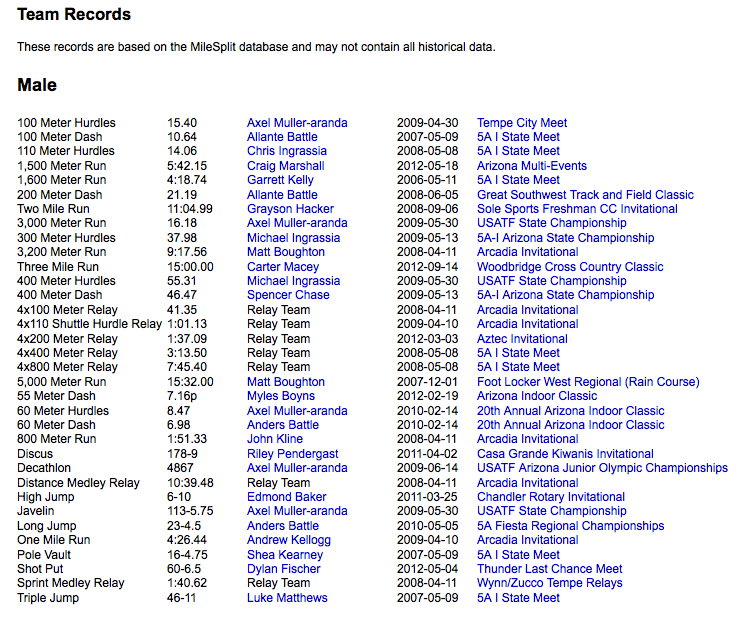
About Our Team (This is what your team page could look like)